
As an Amazon Associate, Den of Laptop earns from qualifying purchases.
If you’re a content creator, filmmaker, wedding video maker, student or editor looking for the best laptop for video editing we have listed down 5 best laptops for video editing.
Whether you’re using Adobe Premiere Pro, DaVinci Resolve, Final Cut Pro, or even CapCut, choosing the right laptop is crucial for smooth editing, rendering, and exporting workflows.
In this guide, we’ve researched and compared five powerful video editing laptops for 2025. From budget-friendly options like the Acer Nitro V 16 to pro-grade beasts like the MacBook Pro 16″ and Asus ProArt P16. All these laptops feature at least 16GB of RAM, strong multi-core CPUs, and have earned high ratings from users and reviewers alike.
Best Video Editing Laptops in 2025 (Quick Picks)
- Apple MacBook Pro with M4 Pro – Professional Mobile Workstation
- Dell XPS 16 (OLED) – Best Performance
- Asus ProArt P16 AI Creator – Creator Powerhouse
- Acer Nitro V Gaming Laptop ANV16-41-R5J0 – Best Budget Laptop for Video Editing
- MacBook Air 15″ M4 – Lightweight & Beginner Briendly
Minimum vs Recommended Specs for Video Editing
Before you pick a laptop, match its specs to the kind of work you do. Editing short 1080p clips for YouTube is very different from cutting long 4K timelines with lots of effects.
For 1080p video editing (YouTube, social media):
- CPU: Recent Intel Core i5 / Ryzen 5 / Apple M‑series or better
- RAM: 16 GB
- Storage: 512 GB NVMe SSD (1 TB if you keep a lot of projects locally)
- GPU: Integrated Apple GPU or entry‑level RTX 3050/4050‑class for smoother effects
For serious 4K or long‑form editing (Premiere Pro, DaVinci, Final Cut):
- CPU: Intel Core i7/i9 or Ryzen 7/9 (latest gen) or Apple M4 Pro/M4 Max
- RAM: 32 GB (or 24 GB unified memory on Apple)
- Storage: 1 TB NVMe SSD minimum
- GPU: Nvidia RTX 4060 or better, or Apple’s higher end M‑series(PRo/Promax) GPU for heavy effects and color work
Getting the basics right matters more than chasing the highest specs. A balanced CPU, GPU, RAM, and SSD setup will feel much faster than a lopsided or impulsive build.
Do I need a high-end laptop for video editing?
Video editing is a demanding task that requires a lot of processing power, memory, storage, and graphics performance. But you don’t always need a high-end laptop. If your requirements are for 1080p then you can still edit videos on a lower-end laptop, but you may experience some lag, stuttering, or crashing, especially if you are working with large or complex files.
If you regularly work with 4K, long timelines, or lots of motion graphics, it’s worth investing in at least a Core i7/Ryzen 7 or Apple M‑series chip, 32 GB RAM, and a decent GPU. For lighter YouTube or social content, a well‑chosen mid‑range machine with 16 GB RAM and a fast SSD is often enough to get started
Best Laptops for Video Editing (2025)
The following are some of the best laptops for video editing. (You have already seen the list above), based on expert reviews and user feedback.
#1 – Apple Macbook Pro M4 Pro

If you’re after the best mac for video editing, this MacBook Pro is a powerhouse that’s hard to beat. The 16.2-inch Liquid Retina XDR display makes your footage look stunning with vibrant colors and sharp details.
Thanks to the M4 Pro chip and 24GB of unified memory, you’ll breeze through editing, rendering, and multitasking without hiccups. Whether you’re working on a quick clip or a full-length film, this laptop keeps up effortlessly. Plus, it plays nicely with your other Apple devices, making your workflow feel seamless and natural.
Since it’s an M4 chip, this MacBook Pro is built to handle future software updates and heavier projects, meaning you won’t need to upgrade anytime soon. That longevity can save you money over the years.
Despite its power, the MacBook Pro stays surprisingly portable at just under 5 pounds. With multiple ports including Thunderbolt 5, HDMI, and an SDXC card slot, you can connect all your gear without needing extra adapters.
PROS
- Powerful M4 Pro Chip handles demanding video editing tasks smoothly
- 24GB unified memory ensures seamless multitasking and fast app performance
- Supports up to two external 6K displays
- Long battery life keeps
CONS
- Limited internal storage in base models
- Expensive, especially for upgrades
)
#2 – Dell XPS 16 (OLED)

If you want a laptop that combines power with portability and a gorgeous display, the NewestDell XPS 16 is a solid pick. Its 16.3-inch 4K OLED touchscreen makes your footage pop with vibrant colors and deep blacks, so you can catch every detail.
The Intel Core Ultra 9 processor and 32GB of RAM keep your editing software running smoothly, even when you’re juggling multiple apps. Plus, the GeForce RTX 4060 graphics card gives you a nice boost for rendering and effects.
Its powerful specs and stunning display make it great for graphic design, streaming, and even gaming.Whether you’re working on a quick edit or a full-length project, this laptop handles it without breaking a sweat.
It’s also got thoughtful extras like a backlit keyboard and Thunderbolt 4 ports, making your workflow easier and more comfortable.
With top-tier components and a durable build, this laptop is designed to last through years of video editing projects. Its power means you won’t need to upgrade anytime soon, saving you money and hassle down the road.
PROS
- 16.3-inch 4K OLED touchscreen delivers stunning, true-to-life colors
- Core Ultra 9 185H processor with 16 cores handles demanding video tasks effortlessly
- RTX GPU handles real-time effects smoothly
- Thin and Slim Design / Looks
CONS
- Ports are USB-C only (dongles needed for SD/HDMI)
- Expensive, especially with OLED config
#3 – ASUS ProArt P16
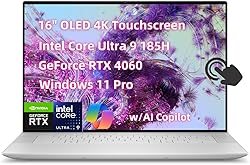
If you’re looking for the best laptop for video editing that packs serious power and a stunning display, the ASUS ProArt P16 is worth checking out. Its 16-inch 4K OLED touchscreen brings your footage to life with vibrant colors and deep blacks, making it easier to spot every detail.
The Ryzen AI 9 HX processor combined with 32GB of RAM means you can juggle heavy editing software and multitask without a hitch. Plus, the GeForce RTX 4060 graphics card gives you that extra boost for rendering and effects.
The powerful hardware reduces the need for frequent upgrades, and the solid build quality means fewer repairs or replacements down the line. The touchscreen adds flexibility for creative tasks. The laptop’s design keeps heat manageable, so you won’t feel bogged down during marathon workdays.
Users report consistent performance with no crashes or slowdowns, even under heavy workloads
PROS
- 4K OLED display with top-tier color accuracy
- Creator Dial for precise editing control
- excellent thermals
- Powerful Ryzen AI 9 HX processor
CONS
- targeted more toward professionals
- Heavier than most laptops in its class
#4 – Acer Nitro V

If you’re looking for a laptop that can also handle gaming and multitasking without breaking a sweat, the Acer Nitro V 16 is worth checking out. It packs a punch with its AMD Ryzen 7 octa-core processor and NVIDIA RTX 4060 graphics, so you get smooth performance whether you’re rendering videos or diving into your favorite games.
The 16-inch 165Hz display is bright and crisp, making it easier to spot every detail in your edits. Plus, with 16GB of DDR5 RAM and a speedy 1TB Gen 4 SSD, you’ll have plenty of space and speed to juggle large files and apps.
It’s a bit on the heavier side at around 5.5 pounds, so it’s more of a desktop replacement than a travel buddy, but if you mostly work from a desk or home studio, it’s a solid choice.
Users have reported consistent performance without crashes or throttling, thanks to the advanced cooling system and quality components. It’s built to handle demanding workloads day after day.
The AI-powered Copilot key is a neat touch, helping you stay focused and creative. Overall, it’s a versatile machine that balances power and practicality, making it a great pick for anyone serious about video editing and gaming.
PROS
- Great value under $1,200 for power users
- 16″ high-refresh IPS screen is smooth and spacious
- Excellent GPU for CUDA-accelerated editing.
CONS
- Bulky and gamer-styled design may not suit pros
- not 100% sRGB
#5 – Macbook Air 15 M4
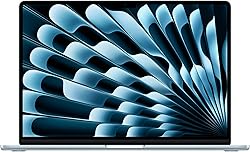
If you want a laptop for video editing that’s also super light and easy to carry around, the Apple MacBook Air 15″ with the M4 chip is a solid pick. The 15.3-inch Liquid Retina display makes your videos pop with vibrant colors and sharp details, which is great whether you’re working on a quick edit or a big project.
Thanks to the M4 chip’s speed and efficiency, you can jump between apps and handle video rendering without feeling held back.
The battery life is impressive ,you can get through a full day of editing or streaming without scrambling for a charger. It’s also quiet since it has no fans, so you won’t get distracted by noise during those focused sessions.
Whether you’re editing on the go or just want a sleek, powerful machine for your creative work, this MacBook Air fits the bill nicely.
The slim design and lightweight feel make it practical for carrying around all day. While it has fewer ports than some laptops, pairing it with a dock solves that easily.
The fanless design reduces wear and tear, and the MacOS environment is stable and secure, giving you peace of mind.
PROS
- Silent operation with zero fan noise
- 15.3-inch Liquid Retina display
- Up to 18 hours of battery life keeps
- Fanless Design
CONS
- Only two USB-C ports (no HDMI or SD card slot)
- Limited internal storage unless upgraded
- Not ideal for extremely heavy 4K timelines or multi-cam projects
Budget-Friendly Picks
Not everyone has the budget to spend thousands of dollars on a high-end machine. Luckily, there are some great options available that won’t break the bank. Here are 3 best bedget friendly laptops for video editing:
#6 – Lenovo Idea Pad 5
One of the best budget-friendly picks for video editing is the Lenovo IdeaPad 5. This laptop features an AMD Ryzen 7 5825U processor, 16GB of RAM, and a 512GB SSD. It also has a 15.6-inch Full HD display, making it great for editing videos. The IdeaPad 5 is priced at around $800, making it a great option for those on a tight budget.
CHECK PRICE#7- Acer Aspire 5
Another great option is the Acer Aspire 5. This laptop comes with Intel as well as AMD Processors. The one on our list features an AMD Ryzen 5 3350U Quad Core processor, 20GB of RAM, and a 1TB SSD. It also has a 15.6-inch Full HD display, making it great for video editing. The Aspire 5 is priced at around $500, making it a very affordable option.
CHECK PRICEBuying Guide : Best Laptops for Video Editing
Key Features for Video Editing Laptops
When it comes to video editing, having a powerful laptop is essential to ensure a smooth and efficient workflow. In this section, we will discuss the key features that are necessary for a laptop to be suitable for video editing.
Processor Power
the CPU does a lot of heavy lifting for decoding footage, handling timelines, and exporting your projects. Mid‑range chips can handle 1080p, but for smooth 4K or heavy multicam you really want a recent Intel Core i7/i9, Ryzen 7/9, or Apple M‑series chip.
The processor is the brain of the laptop does a lot of heavy lifting in video editing like decoding footage, handling timelines, and exporting your projects. A high-end processor can handle complex video editing tasks with ease, while a low to mid range processor may struggle to keep up.
Intel Core i7/ i9, Ryzen 7/9 or Apple M series are recommended for 4k or heavy wordloads as they offer high clock speeds and multiple cores.
RAM Requirements
For basic 1080p editing, 16 GB RAM is the bare minimum you must have. If you work with 4K, long projects, or keep Premiere Pro and multiple apps open together, 32 GB or more makes a big difference to smooth playback and responsiveness
Storage
Video files can take up a lot of storage space, so having enough storage is essential for video editing laptops. Solid State Drives (SSDs) are recommended for video editing laptops as they offer faster read and write speeds than traditional Hard Disk Drives (HDDs). SSDs also help your NLE cache and preview files much faster than HDDs,
A minimum of 512GB of storage is recommended, but 1TB or more is ideal for storing large video files and project files.
Graphics Capabilities
Modern editors like Premiere Pro and DaVinci Resolve use the GPU heavily for effects, color grading, and exports, so a laptop with an RTX 4060‑class GPU or better is ideal for demanding 4K work.
A dedicated graphics card with at least 6-8 GB of VRAM is recommended for video editing laptops. Nvidia’s GeForce GTX or RTX series and AMD’s Radeon RX series are some of the popular graphics cards used in video editing laptops.
Operating System Considerations
The choice of operating system depends on the user’s needs and preferences. Windows, MacOS and Linux are the most popular available options. Lets have a look:
Windows vs. MacOS for Video Editing
The two most popular operating systems for video editing are Windows and MacOS. Both have their advantages and disadvantages, and the choice ultimately depends on the user’s preference.
Windows is a popular choice for video editors due to its versatility and compatibility with a wide range of software. Windows laptops are more affordable than Macs , making it an attractive option for those on a budget. However, Windows can be prone to crashes and errors, which can be frustrating for video editors who need to work quickly and efficiently.
On the other hand, MacOS is known for its stability and reliability, making it a popular choice for professional video editors. It also has a user-friendly interface and is optimized for creative applications like video editing. However, MacOS is more expensive than Windows, and not all software is compatible with it.
Linux for Video Editing
Linux is not a popular choice for video editing, but it is a viable option for those who prefer open-source software. There are several video editing software options available for Linux, including Kdenlive and OpenShot. Linux is also known for its stability and security, making it a good choice for those who prioritize these features.
However, Linux is not as user-friendly as Windows or MacOS, and it can be difficult to find support for certain software or hardware. Additionally, video editing software for Linux may not have all the features and capabilities of software for Windows or MacOS.
Display Quality and Color Accuracy
When it comes to video editing, a laptop’s display quality and color accuracy are critical factors to consider. A laptop with a high-quality display and accurate color reproduction will help you achieve the best results in your video editing projects.
One of the essential features to look for in a display is its resolution. A high-resolution display will provide you with more screen real estate, making it easier to work with multiple windows and panels simultaneously. The most common resolutions for video editing laptops are 1080p, 1440p, and 4K. A 4K display will offer the most significant amount of detail, but it may also require more processing power and battery life.
Another crucial factor to consider is color accuracy. Your laptop’s display should be able to reproduce colors accurately, so you can make informed decisions about color grading and correction. Look for a laptop with a display that covers a wide color gamut, such as Adobe RGB or DCI-P3. A high color gamut coverage means that the display can reproduce more colors, resulting in more accurate and vibrant images.
Some laptops also come with features such as Pantone validation or X-Rite calibration, which ensure that the display’s colors are accurate and consistent. These features are especially important if you need to work on projects that require precise color reproduction.
Portability vs. Performance
When it comes to video editing, having a laptop with a long battery life is essential. Editing videos can be a time-consuming process, and you don’t want to be tethered to an outlet the whole time. Additionally, a laptop with good power management features can help you get the most out of your battery life.
When it comes to power management, Windows laptops have an advantage over MacBooks. Windows laptops have more options for power management, which allows you to customize your settings to get the most out of your battery life. MacBooks, on the other hand, have a more streamlined power management system that is easier to use but less customizable.
Connectivity Options
Having a laptop with a variety of connectivity options is essential for transferring files, connecting to external displays, and accessing peripherals. In this section, we will discuss the various connectivity options that should be considered when choosing the best laptop for video editing.
Ports and Interfaces
One of the most important connectivity features to consider is the number and type of ports and interfaces available on the laptop. Video editing requires a lot of data transfer, so having fast and reliable ports is crucial. Some of the most common ports and interfaces that should be considered are:
- USB-C/Thunderbolt 4: These ports are becoming more and more common on laptops and offer fast data transfer speeds and the ability to connect to external displays.
- HDMI: This port is essential for connecting to external displays and projectors.
- SD Card Reader: This feature is important for transferring files from cameras and other devices.
- Ethernet: For those who need a wired internet connection, having an Ethernet port is a must.
Wireless Connectivity
In addition to ports and interfaces, having strong wireless connectivity is also important for video editing. This allows for fast file transfer and the ability to work remotely. Some of the most important wireless connectivity features to consider are:
- Wi-Fi 6: This is the latest and fastest Wi-Fi standard that provides faster speeds and more reliable connections.
- Bluetooth: This feature is important for connecting to peripherals such as keyboards and mice.
- 4G/5G: For those who need to work remotely or on location, having a laptop with built-in cellular connectivity can be a game-changer.
It’s important to consider both the number and type of ports and interfaces, as well as the strength of wireless connectivity. By considering these factors, users can ensure that they have the necessary tools to work efficiently and effectively.
If your current laptop keeps freezing or crashing while editing, check out our laptop troubleshooting guide to see if you can fix it before upgrading.
Laptop Accessories for Video Editors
Video editing requires a lot of storage space, color accuracy, and proper cooling to avoid overheating and crashes. While a powerful laptop is a must-have, there are some essential accessories that can enhance the video editing experience. Here are some of the most useful accessories for video editors:
External Storage
Video files can take up a lot of space, and it’s essential to have enough storage to store all your projects. External hard drives and solid-state drives (SSDs) are great options for expanding your laptop’s storage capacity. They are portable, easy to use, and offer fast transfer speeds.
Some of the best external hard drives for video editing include the Seagate Backup Plus Portable, Western Digital My Passport, and LaCie Rugged.
For SSDs, the Samsung T5, SanDisk Extreme Pro, and Crucial X8 are excellent choices.
Color Calibration Tools
Color accuracy is crucial for video editing, and a color calibration tool can help ensure that your laptop’s display shows accurate colors. These tools can adjust the color temperature, gamma, and brightness of your display to match industry-standard color profiles.
The Datacolor SpyderX Pro, X-Rite i1Display Pro, and Pantone ColorMunki are some of the best color calibration tools for video editing. They are easy to use, accurate, and can help you achieve consistent color across multiple displays.
Cooling Pads
Video editing can put a lot of strain on your laptop’s CPU and GPU, which can cause it to overheat and slow down. A cooling pad can help dissipate heat and keep your laptop running smoothly.
The Cooler Master Notepal X3, Havit HV-F2056, and Kootek Laptop Cooling Pad are some of the best cooling pads for video editing. They are affordable, portable, and offer excellent cooling performance.
In conclusion, these accessories can help enhance the video editing experience and make it more efficient. They can help you store your projects, achieve accurate colors, and keep your laptop cool and running smoothly.
Conclusion
Choosing the best laptop for video editing can transform how you work by providing the speed, clarity, and reliability you need.
From the powerhouse Apple MacBook Pro with its stunning Liquid Retina XDR display and advanced M4 Pro chip to the innovative ASUS ProArt P16 with its 4K OLED touchscreen and AI features, these laptops offer a range of options tailored to different needs and budgets.
Investing in the right laptop means you can focus on your craft without worrying about technical limitations.
Frequently Asked Questions
Which laptops are recommended for editing 4K videos cost-effectively?
Editing 4K videos requires a powerful laptop with a high-resolution display, fast processor, and dedicated graphics card. The Acer Nitro V 16 and MacBook Pro are some of the best laptops for editing 4K videos cost-effectively. These laptops come with powerful processors, high-resolution displays, and dedicated graphics cards, making them ideal for handling 4K video editing tasks.
What are the preferred laptops for YouTube content creators?
YouTube content creators require laptops that can handle video editing, streaming, and uploading tasks. The MacBook Pro, Mac book Air and Dell XPS 16 are some of the preferred laptops for YouTube content creators. These laptops come with powerful processors, high-resolution displays, and dedicated graphics cards, making them ideal for handling video editing and streaming tasks.
What are the best laptops for both photo and video editing tasks?
Laptops that are ideal for both photo and video editing tasks require powerful processors, high-resolution displays, and ample storage. The Dell XPS 16, MacBook Pro, and Acer Nitro V 16 are some of the best laptops for photo and video editing tasks. These laptops come with powerful processors, high-resolution displays, and dedicated graphics cards, making them ideal for handling both photo and video editing tasks.
How Important Is Display Quality for Video Editing, and Which Laptop Screens Should I Consider?
Display quality is one of the most important factors for video editing because you need to see colors and details accurately. Look for laptops with high-resolution screens 4K OLED or Apple’s Liquid Retina displays are excellent choices.
For serious color work, prioritize laptops that advertise wide‑gamut coverage like DCI‑P3 or Adobe RGB and are marketed specifically at creators or video editors.
For example, the ASUS ProArt P16 offers a 16-inch 4K OLED touchscreen with superb color accuracy, while Apple’s MacBook Air and MacBook Pro models provide bright, vibrant Liquid Retina displays with support for wide color gamuts like P3.
A higher refresh rate, like 165Hz on the Acer Nitro V, can make your editing experience feel smoother, though it’s less critical than color accuracy.
Also, consider screen size; 15 to 16 inches is a sweet spot for balancing workspace and portability. If you often work outdoors or in bright environments, look for displays with high brightness and anti-reflective coatings.